Firewall Rules
The last step of your WireGuard set up involved creating 2 firewall rules. One for your WAN firewall, and one for your Tunnel.
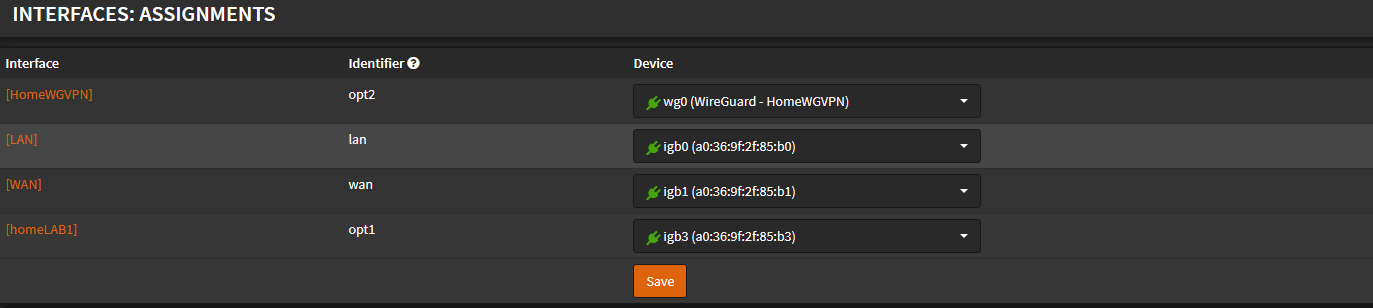
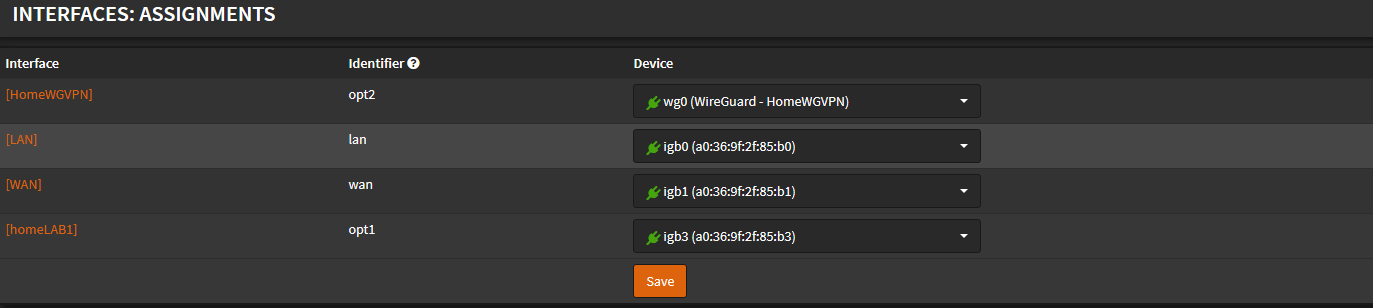
If you haven't done so already, assign your WireGuard VPN as an interface. To do so, navigate to Interfaces ---> Assignments:
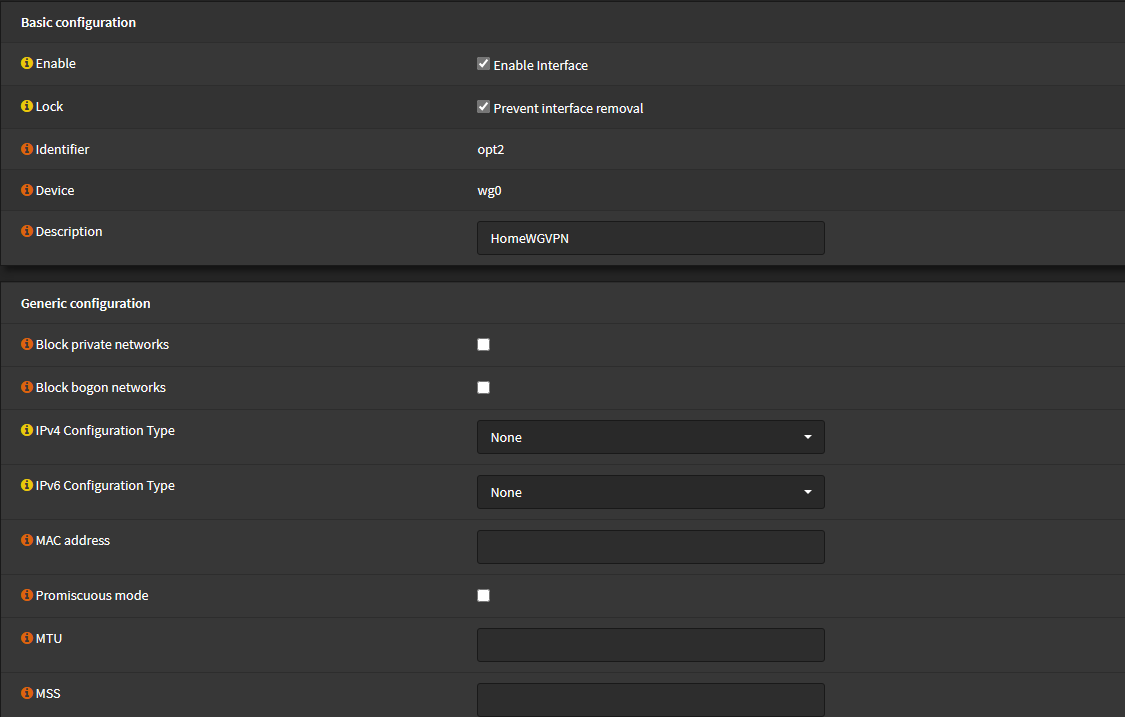
Select your Interface in the sidebar menu:
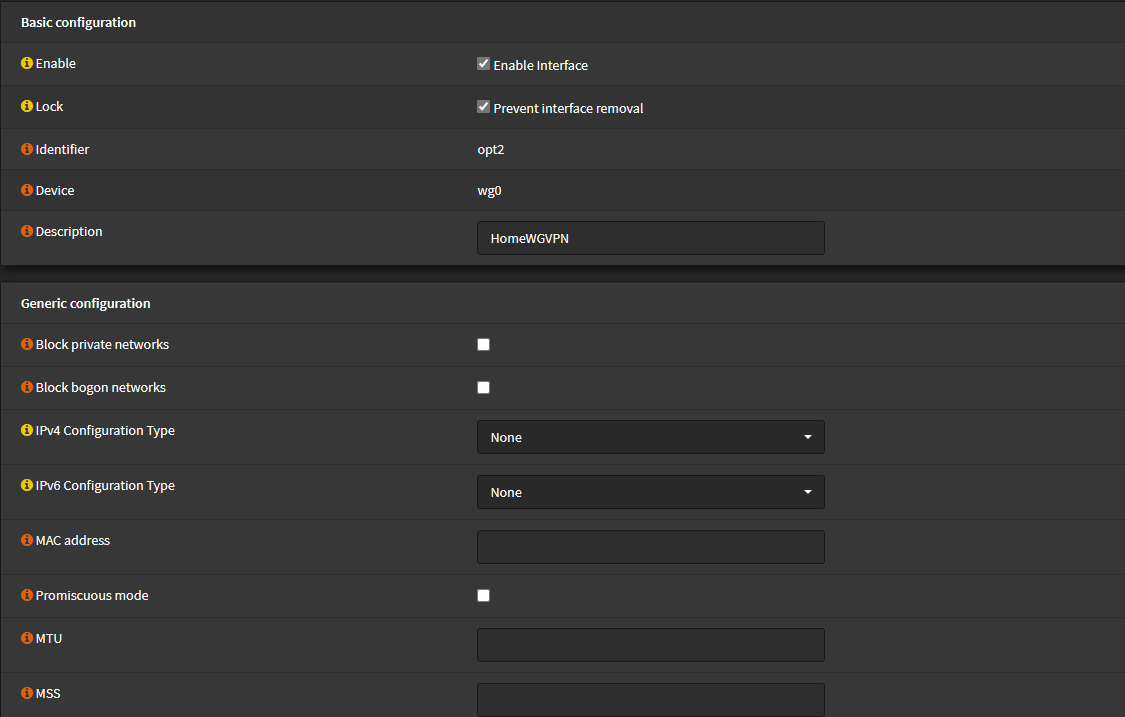
Enable the interface
Lock to prevent removal
No other configs need to be done, save changes and apply settings.
WAN Rule
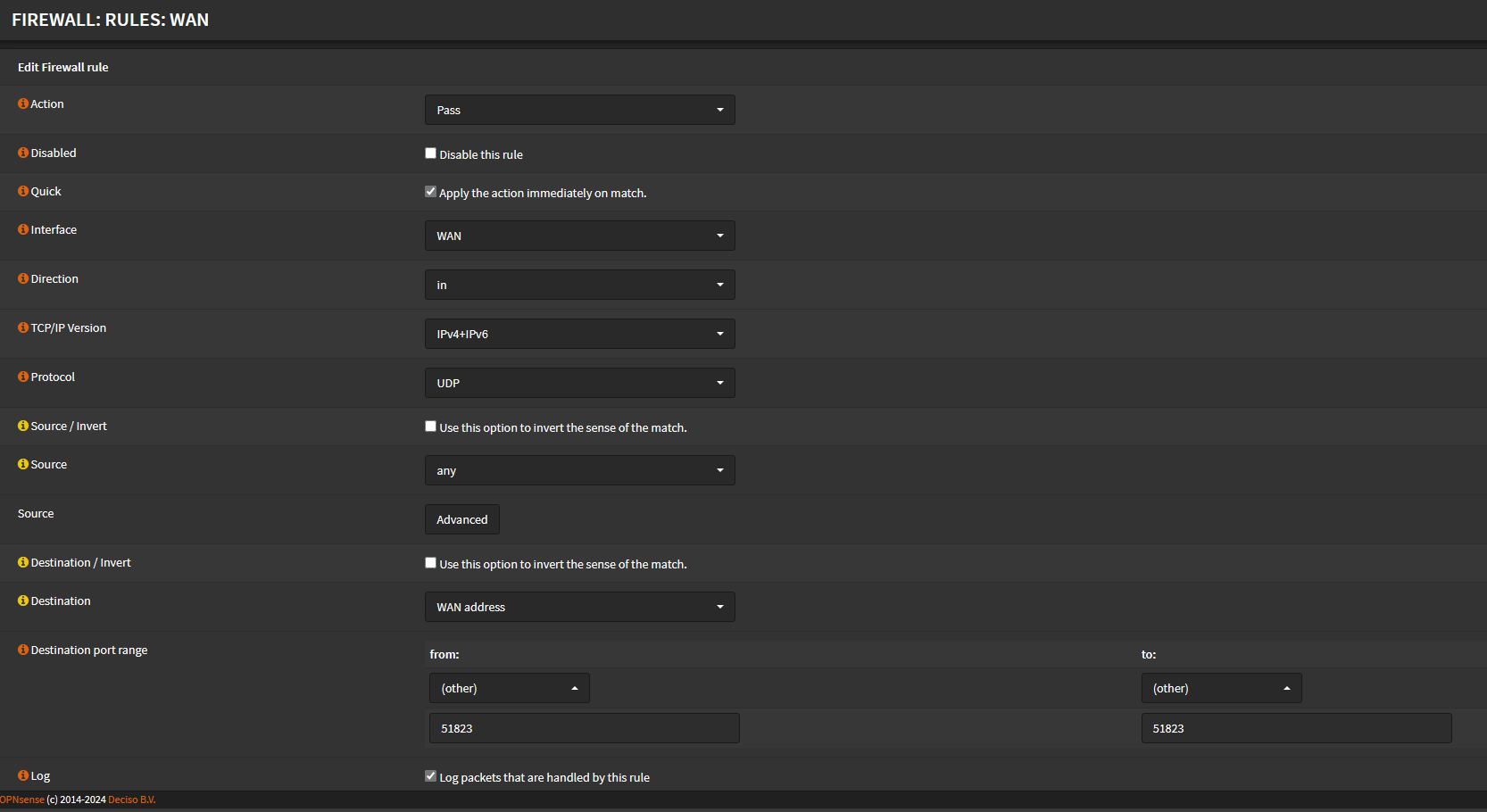
Navigate to Firewall ---> Rules ---> WAN and create a new rule:
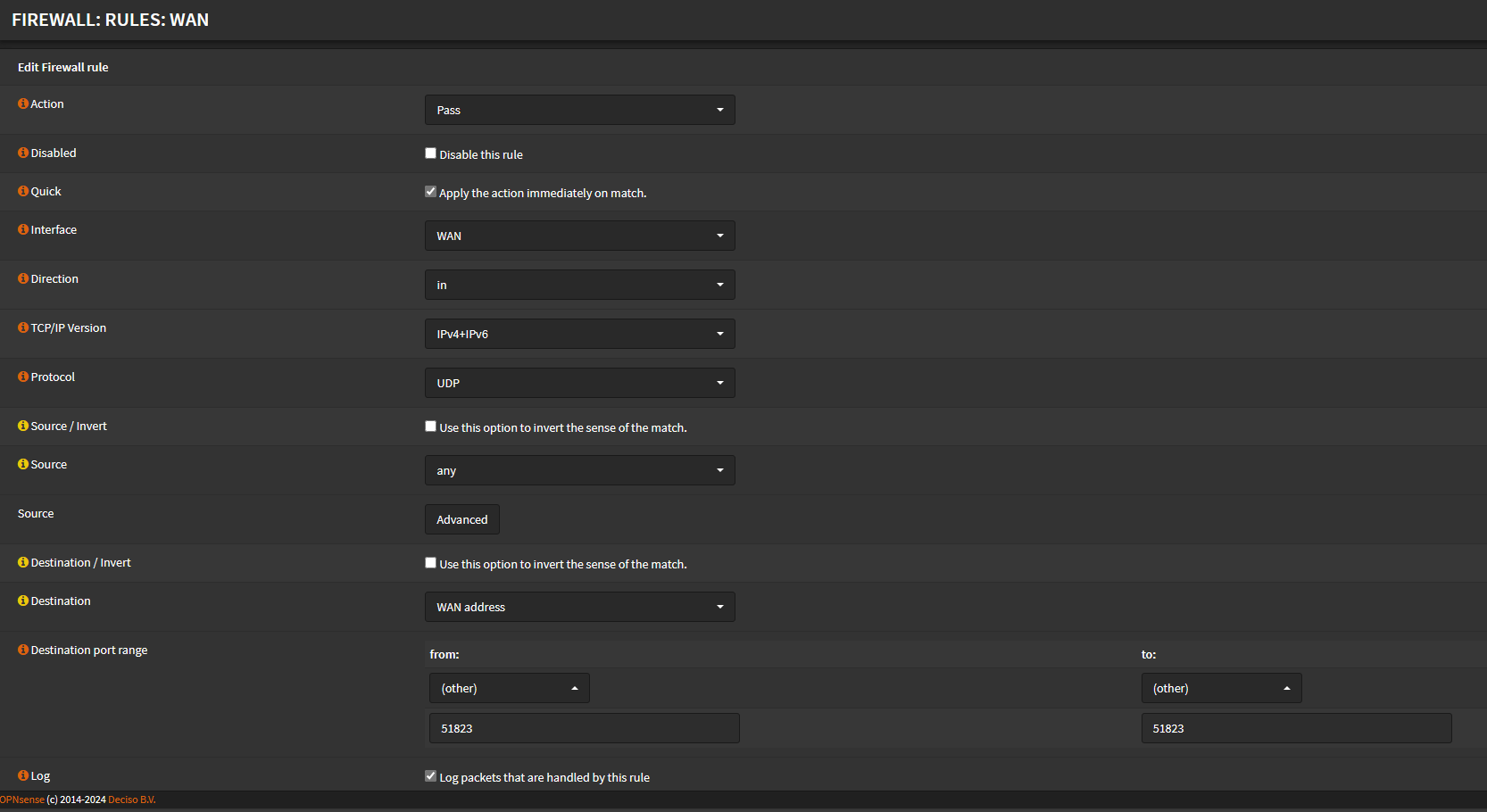
Select the following settings for the rule:
Action = Pass
Quick - checked
Interface = WAN
Direction = In
TCP/IP Version = IPv4 + IPv6
Protocol = UDP
Source = ANY
Destination = WAN Address
Destination Port Range = Enter your Port Number you designated earlier
Default WireGuard port is 51820
Save and apply rules
WireGuard Interface Rule
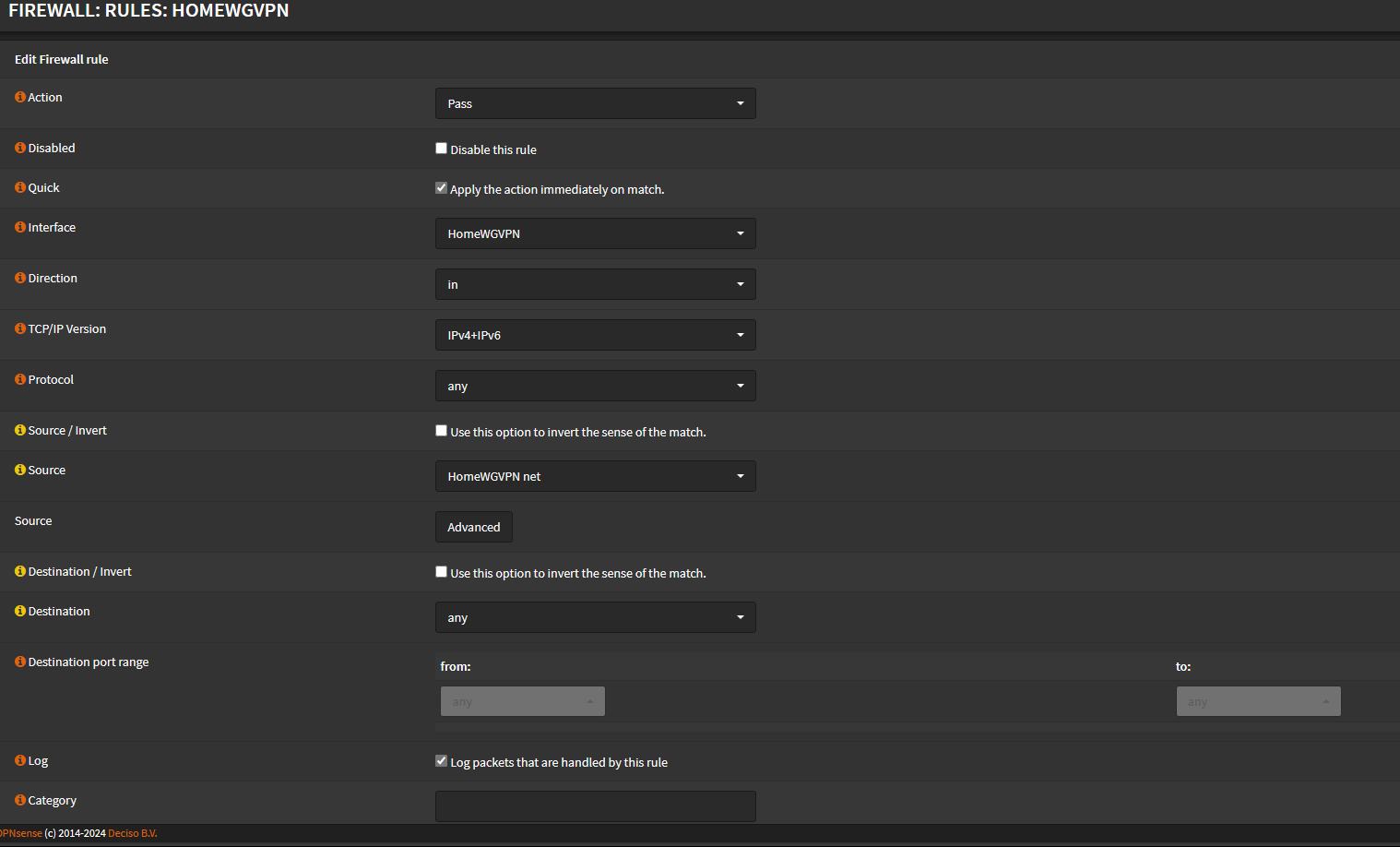
Navigate to your Firewall ---> Rules ---> Select your WireGuard Interface then click create:
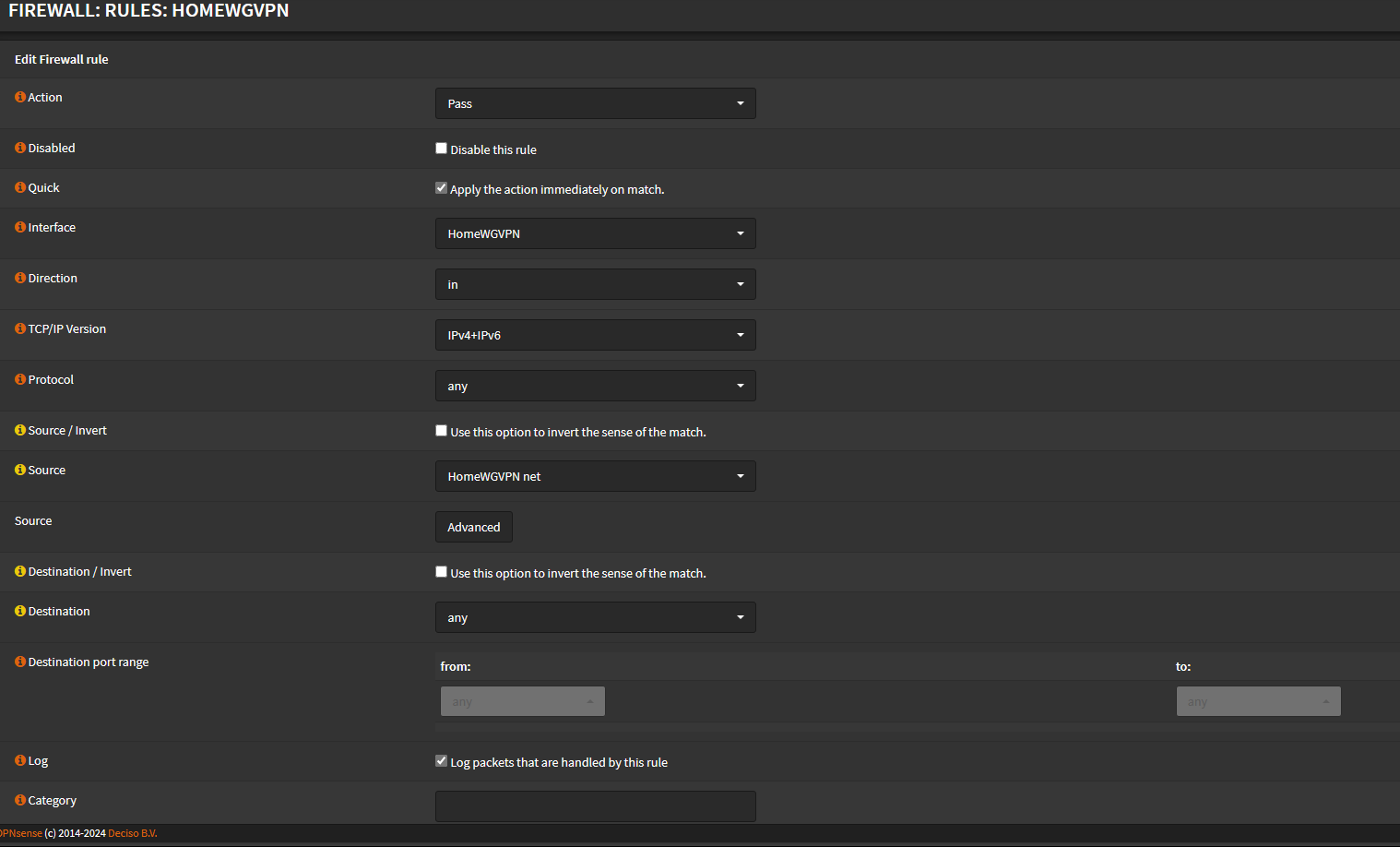
This rule will allow your client to access any device on the local network. Configure the following settings:
Action = Pass
Quick = Checked
Interface = WireGuard Interface
Direction = In
TCP/IP Version = IPv4 + IPv6
Protocol = any
Source = Select your WireGuard Interface Net as source
Destination = Any
Save and apply rules.
Your configuration should now be all set. Check out the next page to view results!